Aquarelle builds a beautiful, lush reef lagoon at startup: sand, corals, sea fans, anemones and seagrass, with eighteen kinds of exotic fish as well as other sea creatures such as majestic turtles, crabs, shrimp, nudibranchs and jellyfish.
A little reef, right here
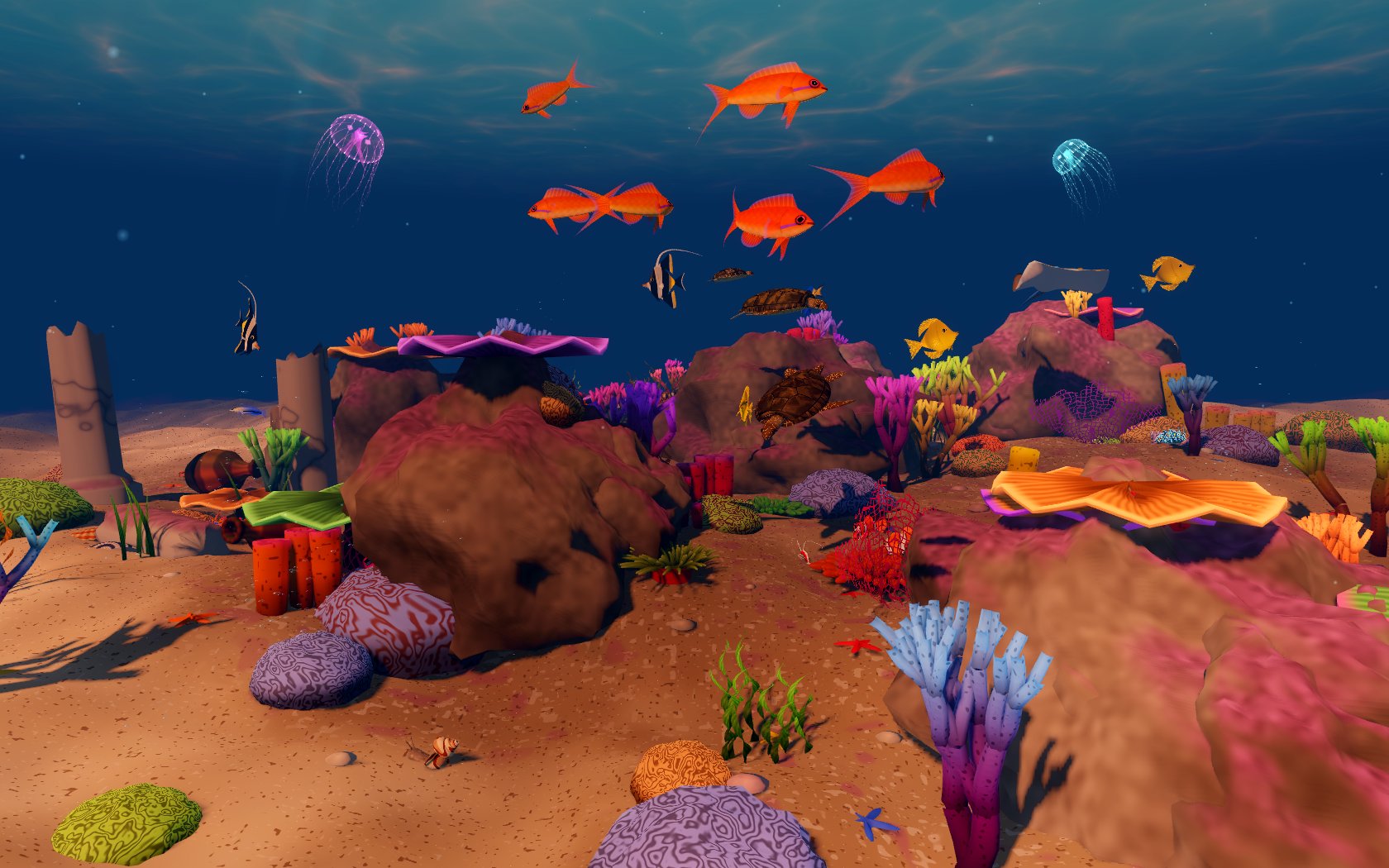
Click for a sneak peek: a miniature reef with a fixed view and around twenty fish. The preview downloads about 50 MB and needs WebGL 2. Once it loads, press Start inside the preview. For the larger reef you can swim through, with over 150 inhabitants and reactive music, download the desktop app.
Around the reef


Captured from the Linux build.
Life on the reef
By default, the reef has over 150 inhabitants, all moving through it in natural, fluid motions. Each displays the behaviours and habits characteristic of its species. The fish interact with each other: some defend their favourite coral or anemone, while others run a cleaning station where bigger fish come to have their mouths and scales cleaned. Some are territorial, chase smaller fish or play tag. Larger groups occasionally swim in beautiful patterns. Startle one of the stars-and-stripes puffers and it puffs itself up into a prickly ball.
The shapes and colours are all generated with code and shaders, without any imported art or models.
Light and sound
There is a day and night cycle, too. It defaults to the warm light of late afternoon, but the slider in the HUD lets you choose any time of day or night: bright morning, warm late afternoon, the golden hours of early evening, or a pitch-dark reef lit only by your torch (batteries included) and the many bioluminescent corals and creatures.
Alongside its living imagery, Aquarelle adds realistic underwater sounds like those you hear when diving on a reef: the surprisingly loud crackling produced by pistol shrimp and sometimes the reef itself, and little air bubbles rising from various places. When you swim, you can hear yourself breathe in from the air tank and breathe out large, fizzy clouds of air bubbles. The breathing sounds play only while actively swimming, not while taking the tour.
Besides the natural reef sounds, Aquarelle has an optional music mode that creates a relaxing ambient theme with synthesized instruments. The music reacts to which animals are nearby and how many there are. Music is on by default; you can switch it off in the sound controls.
Make yourself at home
Aquarelle is a game with no purpose other than spending some time in a beautiful, relaxing reef and enjoying the eye candy. It also works well on a second monitor while you work, inspiring a calm and positive mood.
Moving your mouse in the game shows the HUD menu, with sound and time controls at the top. You can let time progress in reef time, with a full cycle every four hours, or link it to your PC clock.
The desktop app also has a Miniature reef option: a smaller aquarium watched from one spot. Choose it on the title screen or press 3; 1 or 2 returns to a tour of the full reef.
At the bottom is a list of available hotkeys. These vary depending on whether you're swimming, touring or controlling a fish. The 1, 2 and 3 tour keys in the list can be clicked, and while swimming, a right-click takes you back to the tour, like Esc.
Press Tab to open the reef inventory. It shows each species, from fish to crabs and jellyfish, and how many are in the reef. Use its + and − buttons to change the numbers and, for schooling fish, the number of schools. Click a species to open its page, with a live portrait, quick facts and a few paragraphs about it; Esc takes you back to the list. Your choices are saved for the next launch.
Graphics settings
Low and Medium now have smoother rocks and deeper-looking water. There are four graphics quality settings:
- Low: This should work on any machine from the last ten years, even laptops.
- Medium: This runs smoothly on any modern computer with some sort of graphics chip. It gives a good balance of quality and system load.
- HQ: This gives the corals higher resolution and adds nicer shadows, anti-aliasing, water shaders and other effects. It makes the reef look amazing, but it does require a decent graphics card: not high-end, but at least mid-range from five years ago.
- Custom: For a gaming PC with a fast graphics card, there is an Ultra setting tucked away in the Custom graphics settings. It lets you set all the shaders and effects to maximum quality. Custom is also useful if the game is almost smooth enough on your PC. You can use HQ as a base and lower settings such as shadow quality, occlusion and anti-aliasing to find the best balance your system supports.
Aquarelle is available for Windows, Linux and macOS, and it costs nothing. It's a little passion project that I want people to enjoy.
Take it with you - it's free
Version 1.7.9
Linux x86_64 · ZIP · 37.7 MiB (39,517,535 bytes)
SHA-256 861222cc438b0078bd93b1c19a4de4d8c781c83413ae4d45e6e555a27348c77d
Windows x86_64 · ZIP · 46.9 MiB (49,196,419 bytes)
SHA-256 f5d76fe46c724df2310f945aac9678a0fafb05949d81b8bae2a64bddf2fc105f
macOS universal (Apple silicon and Intel) · ZIP · 68.2 MiB (71,483,449 bytes)
SHA-256 e2d7068cfb94a73deb0c37bfe5c659b5251f888d4caa5156ef758272fc1a1e0f
On Linux, extract the archive and run ./aquarelle. On Windows, extract it and run Aquarelle.exe; the first time, Windows may warn about an unknown publisher: choose More info, then Run anyway. On macOS, extract it and open Aquarelle.app; it is not notarized, so the first time macOS blocks it: go to System Settings, Privacy & Security and click Open Anyway. Each archive includes the controls, a short licence and the engine notices. Free to use; redistribution is not permitted.
On Linux and Windows the default renderer needs a Vulkan-capable GPU. On macOS it needs a Mac with Apple silicon; Intel Macs from 2015 on may work but are untested. An OpenGL 3 fallback is available with --rendering-driver opengl3. Choose Low, Medium, HQ or Custom quality on the title screen, with F2 or the controls panel, or start with --quality=low.